HTML Installation:
- 1. Register the domain with your hosting company. If you have registered the domain elsewhere, then create an add-on domain in the cPanel of your hosting company.
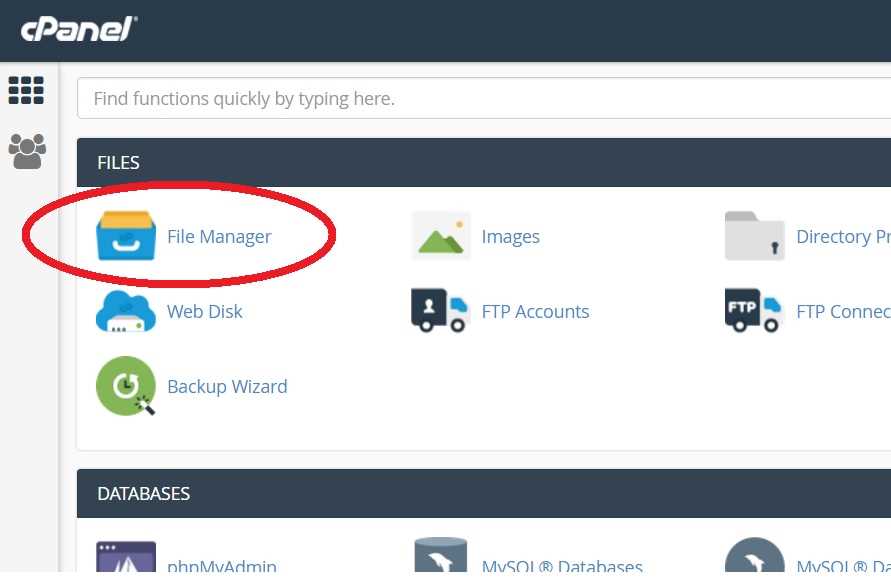
- 2. Login to cPanel and go to "File Manager", as shown in the picture below:
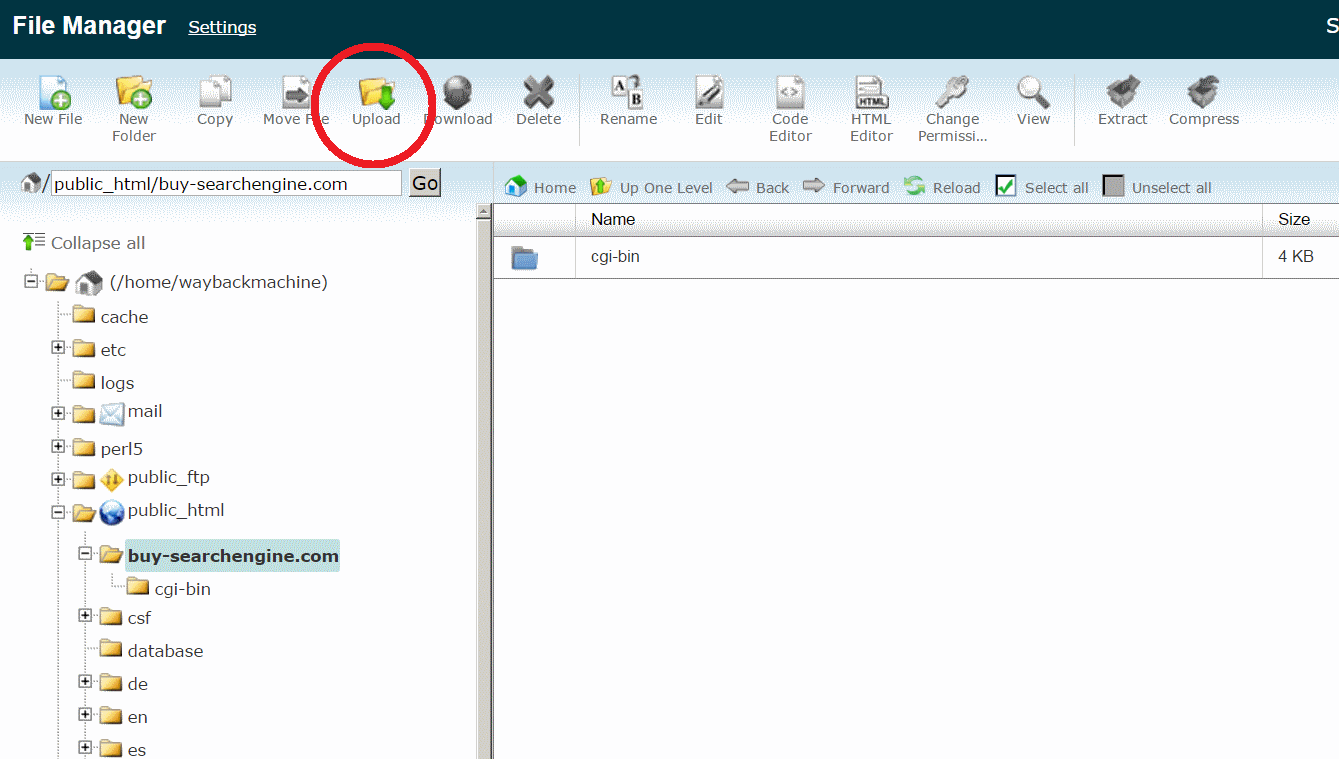
- 3. Browse to the root folder of your domain. Normally this is /public_html/example.com, as shown below. For this tutorial, we used the domain buy-searchengine.com. Then click on "Upload":
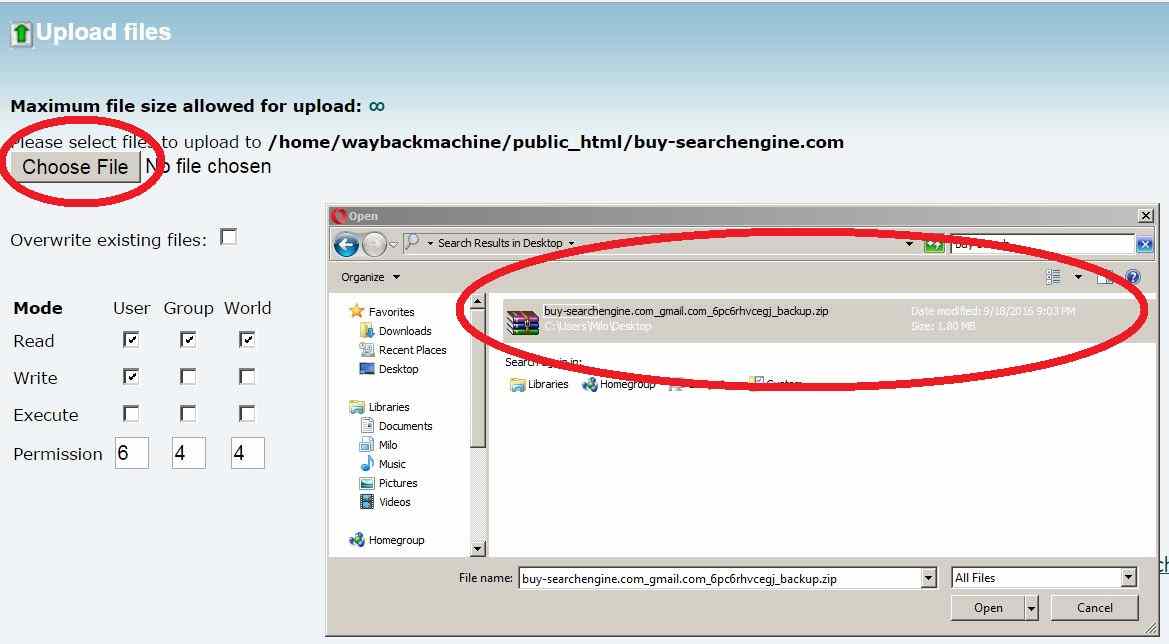
- 4. Then upload the ZIP file, as shown in the picture below.
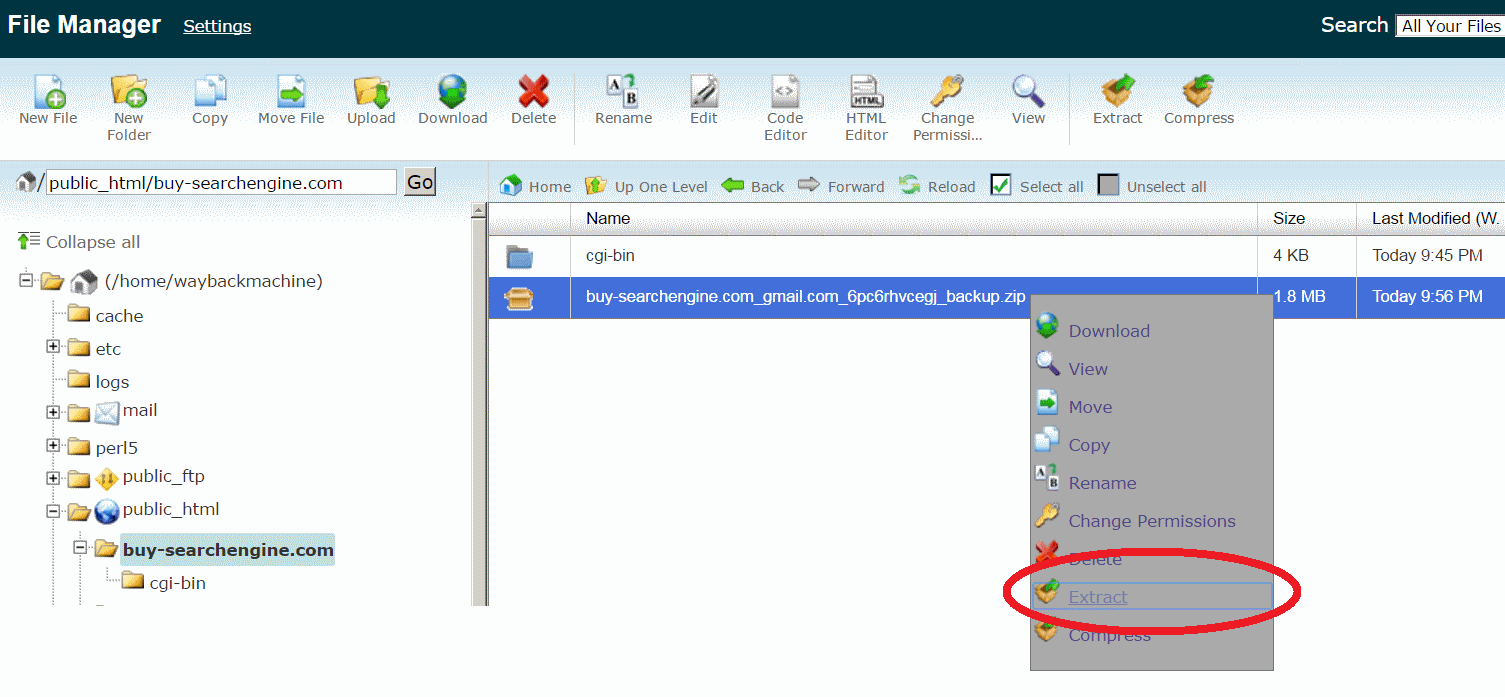
- 5. Extract the ZIP file:
- 6. That's it! If you purchased the domain and the hosting from different companies, then you still have to change the name servers at your domain registrar, and change them with the name servers from your hosting company.
WordPress installation:
If you also ordered the WordPress conversion, then wait until one of our developers sends you a ZIP file with WordPress files. This might take up to 48 hours after the scraping has finished.
- 1. Upload and extract this ZIP file as described above in step 2-6, in the same way as you would do with a zip file with HTML files. In the ZIP file there is also a folder called "database". If you want to save some time, you can remove this folder from the ZIP file, because you do not need to upload it. You will need the folder later though.
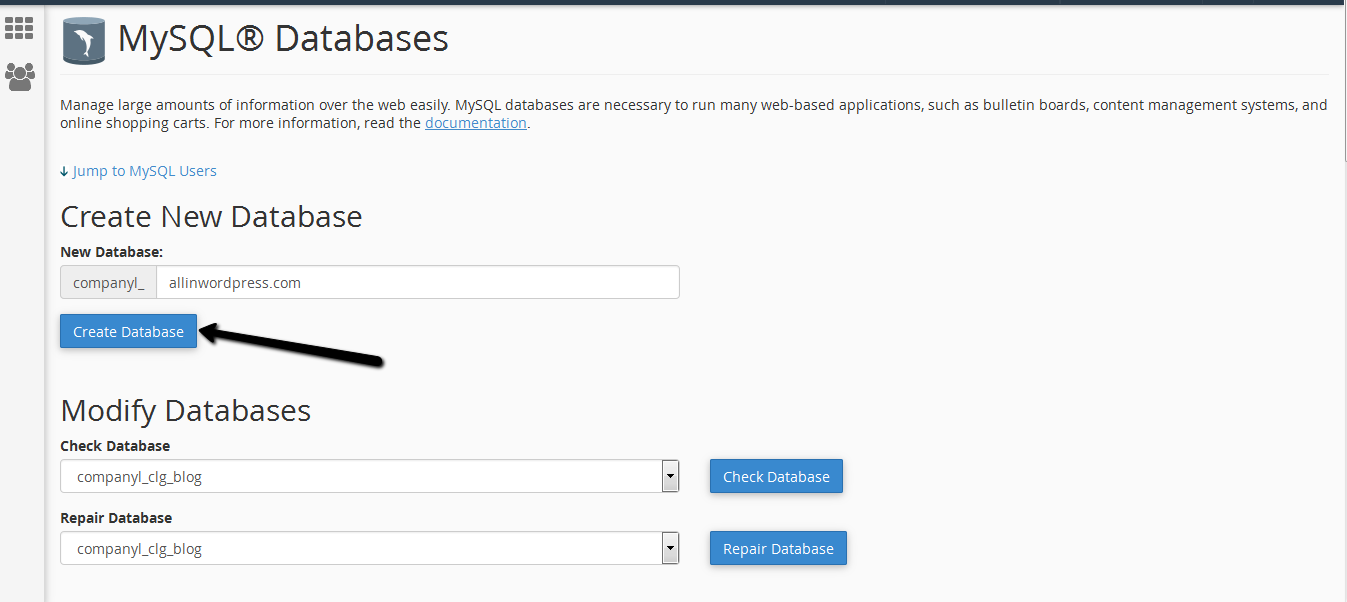
- 2. Go to your cPanel and open "MySQL Databases". Create a new database. You can name it anything, but in our example we use the name of our domain. You will need this name later, so pick something easy.
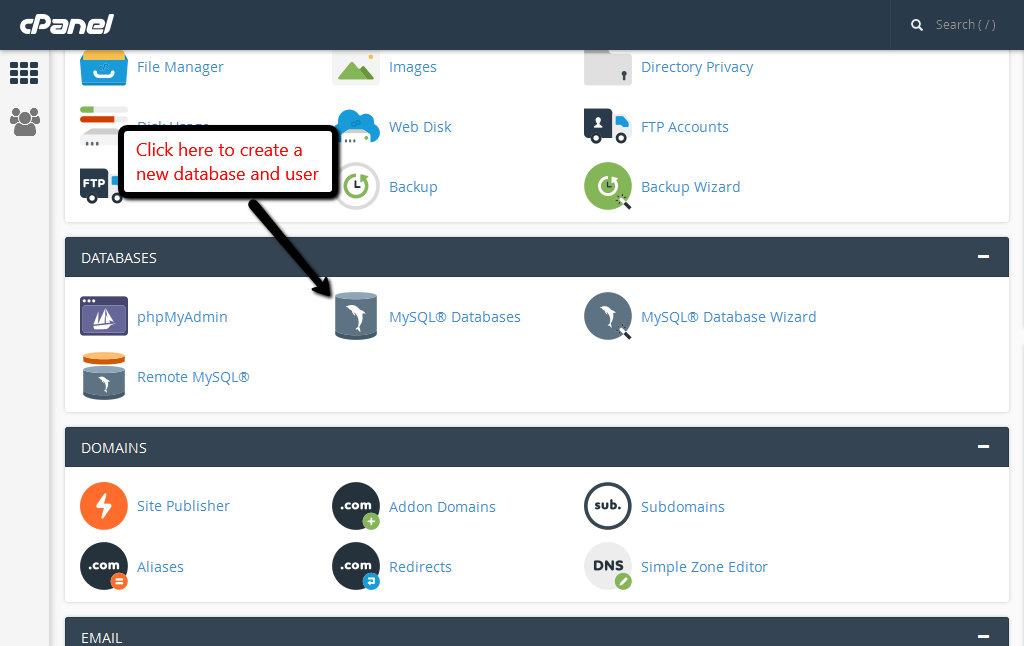
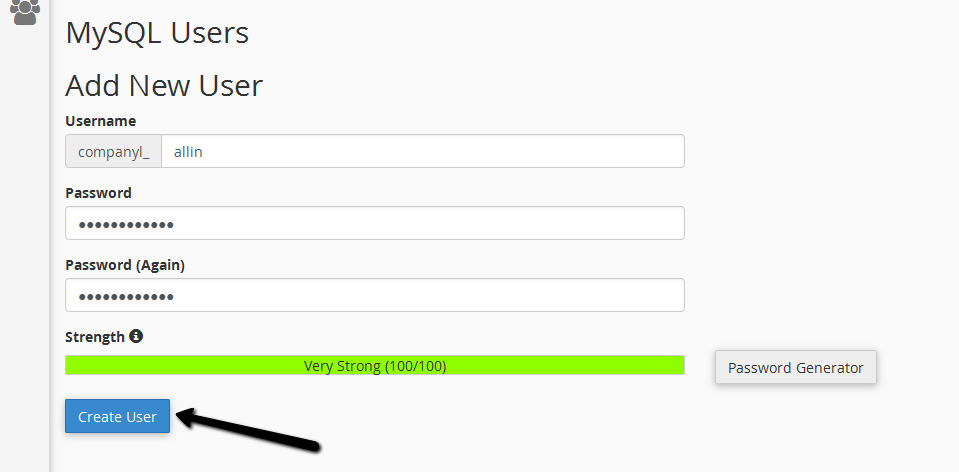
- 3. Create a new user and password. The name can be anything, but you'll need it later.
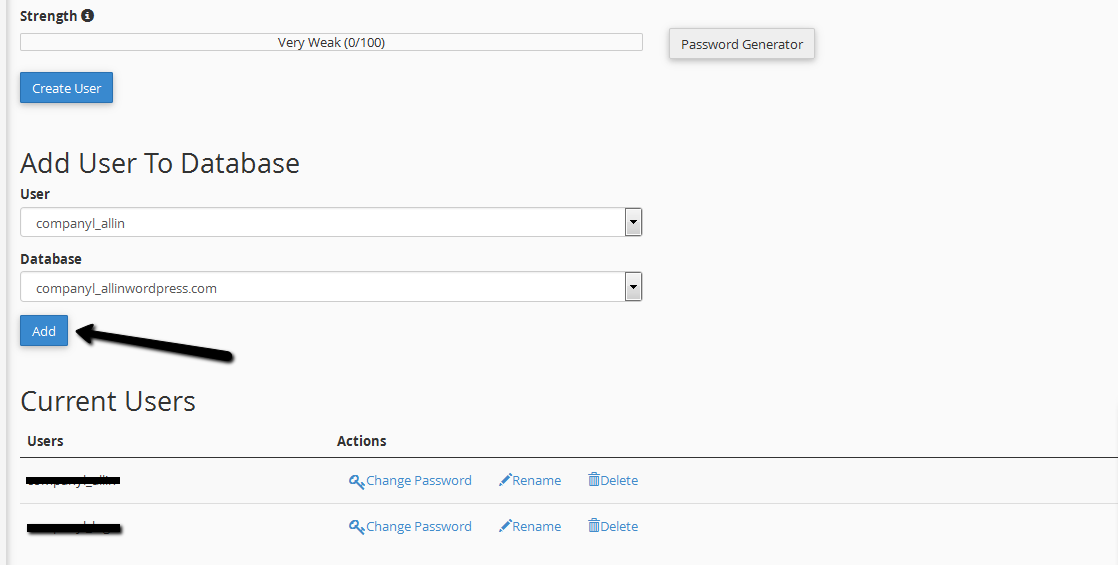
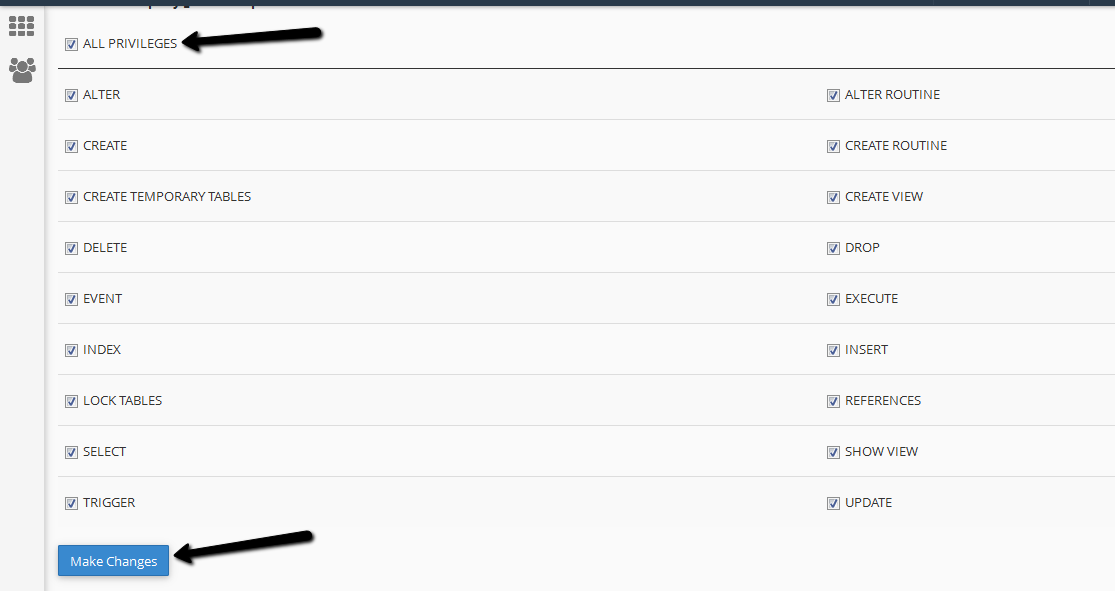
- 4. Add this user to the database. Give your new user access to all privileges.
- 5. On your own computer, unzip the folder called "database". For example, unzip this to your desktop.
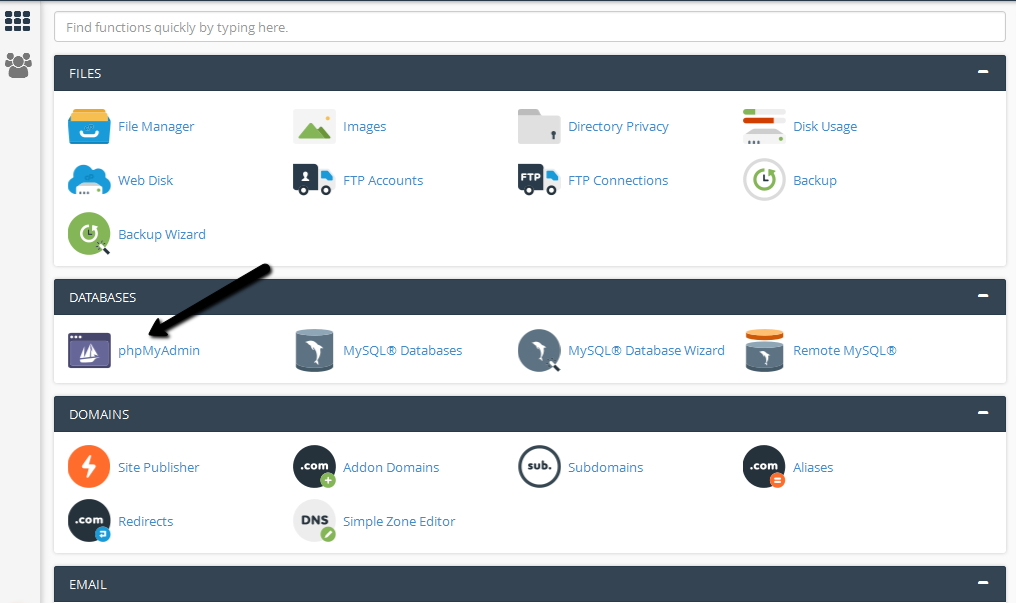
- 6. Go to your cPanel and open "phpMyAdmin".
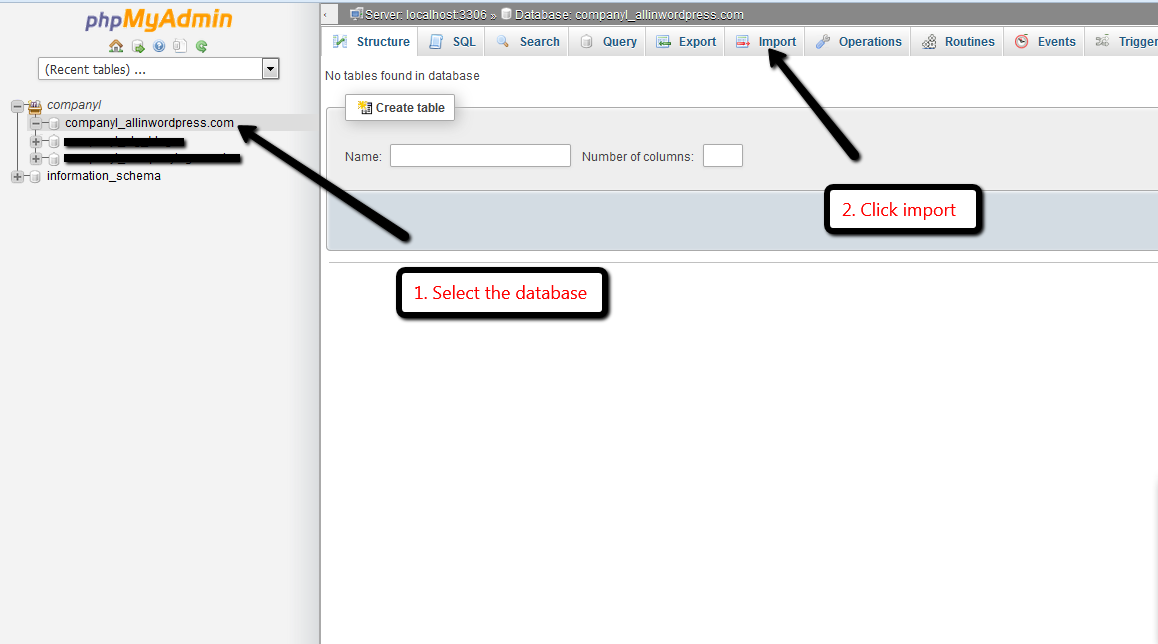
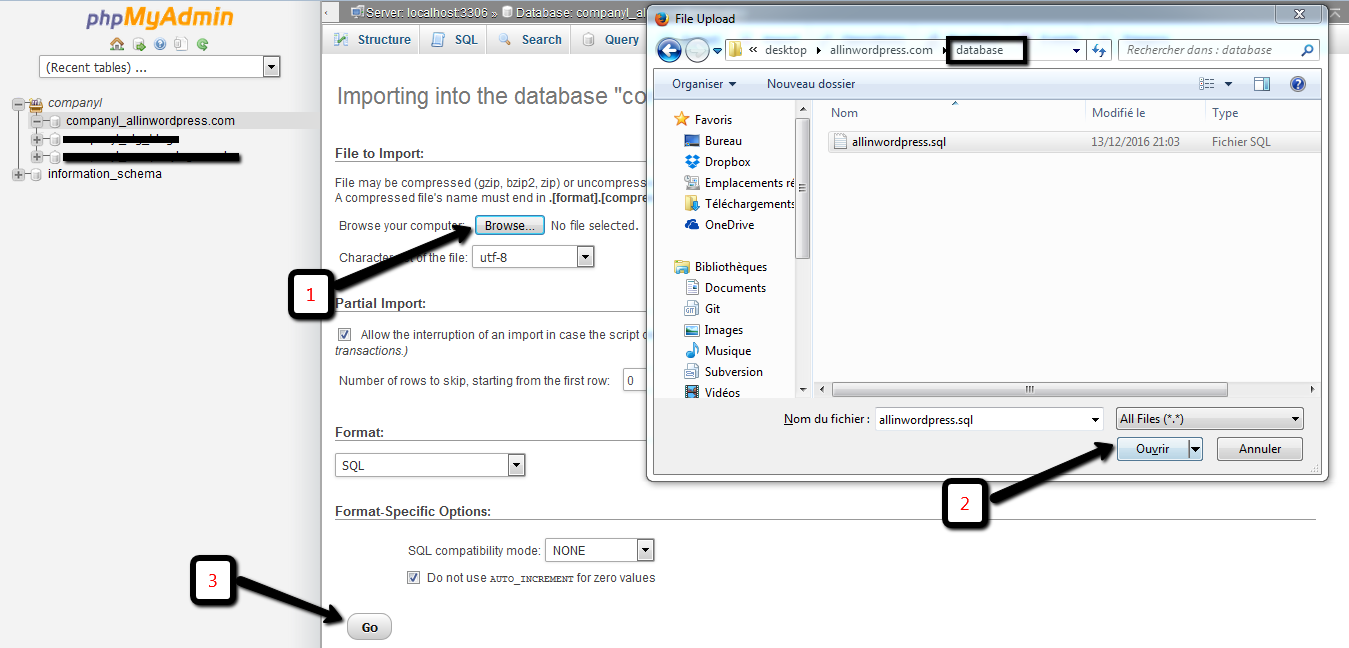
- 7. First select your database on the left panel, by clicking on it. Then click "import" and import the database. This is the .sql file in the folder called "database".
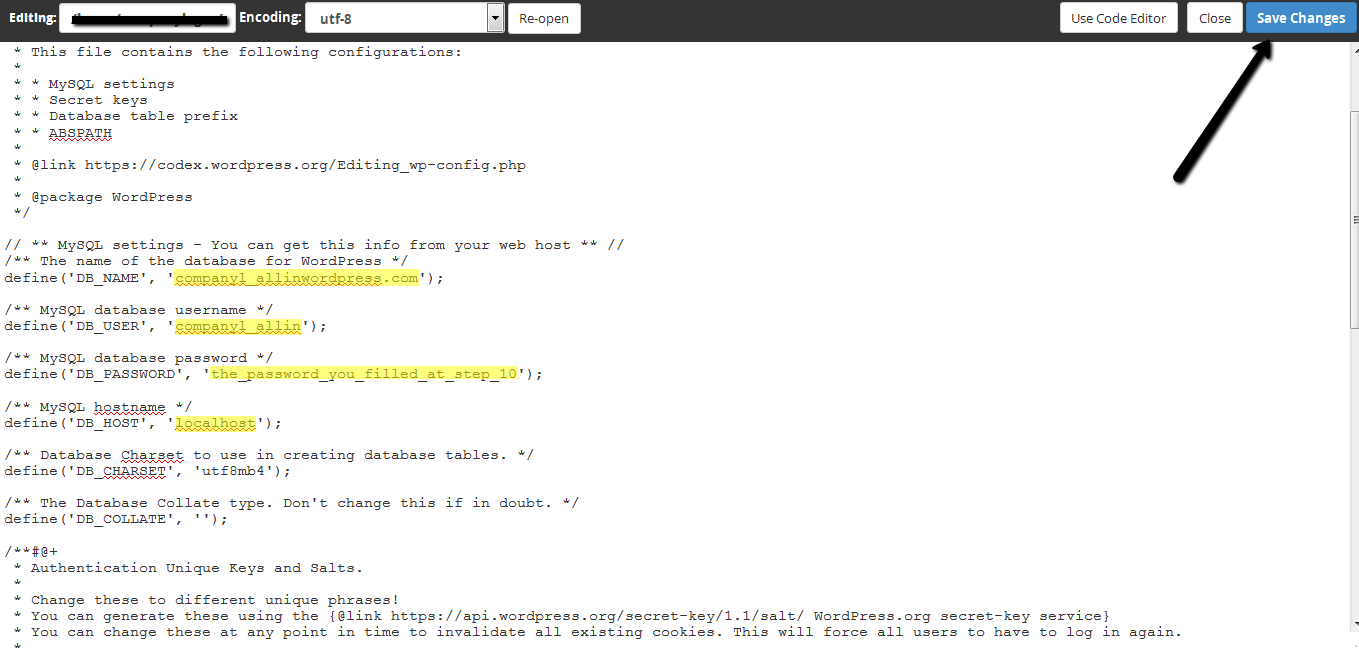
- 8. Go to File Manager and find the file called "wp-config.php". Open this file in a text editor.
- 9. In wp-config.php, edit the database name, database user name and database password. Use the values that you created in step 9 and 10.
With some hosts you also have to change the hostname, but with 95%+ of hosting companies, you can leave this as "localhost". For example with iPage it is "UsernameOfYourAccount.ipagemysql.com"
- 10. That's it! Your WordPress website should now work.